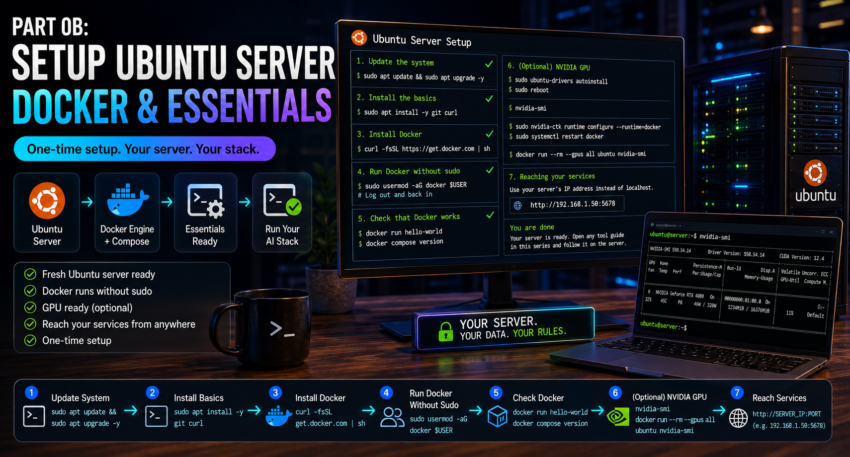
Part 0b: Setting Up a Ubuntu Server (Docker and Essentials)
Who this is for
This guide gets a fresh Ubuntu server ready to run the stack. This is the path for a home server, a spare machine, or a cloud server, rather than a Windows desktop. After this you can follow any tool guide in the series.
You only do this once.
Step 1: Update the system
Log in to your server and run this command:
sudo apt update && sudo apt upgrade -y
Step 2: Install the basics
Run this:
sudo apt install -y git curl
git lets you download projects that ship as repositories (Langfuse and Dify in this series use it). curl is used by several install steps.
Step 3: Install Docker
The simplest reliable method is Docker’s official install script. Download it, then run it:

This installs the Docker engine and the Docker Compose plugin together.
Step 4: Run Docker without sudo
By default Docker needs sudo on every command. Add your user to the docker group so you can skip that:
sudo usermod -aG docker $USER
Then log out and back in, or run newgrp docker, so the change takes effect.
Step 5: Check that Docker works
Run these two:
docker run hello-world
docker compose version
The first prints a hello message. The second confirms Compose is installed.
Step 6: Only if you have an NVIDIA GPU
To let containers use an NVIDIA card you need two pieces: the NVIDIA driver and the NVIDIA Container Toolkit.
Install the driver, then reboot:
sudo ubuntu-drivers autoinstall
sudo reboot
After the reboot, confirm the driver by running nvidia-smi.
Next install the NVIDIA Container Toolkit. Follow the short official instructions on the NVIDIA Container Toolkit install page, which gives you the current package source line for your system. Once it is installed, connect it to Docker:
sudo nvidia-ctk runtime configure –runtime=docker
sudo systemctl restart docker
Then check that Docker can see the card by running docker run –rm –gpus all ubuntu nvidia-smi. A table showing your GPU means you are ready.
Step 7: Reaching your services
On a desktop you visit tools at http://localhost:PORT. On a server you usually browse from another computer, so replace localhost with the server’s own IP address, for example http://192.168.1.50:5678. If you run a firewall, make sure the port is open.
You are done
Your server now runs Docker with everything the stack needs. Open any tool guide in this series and follow it on the server.