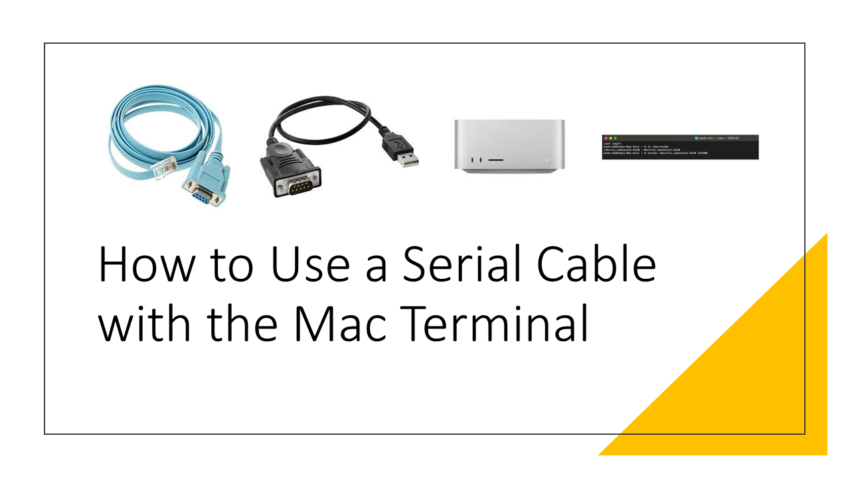
- Connect the Serial Cable: Plug one end of the serial cable into the switch’s serial port.
- Connect to Mac: Plug the serial adapter’s USB end into your Mac.
- Open Terminal: Navigate to and open the Terminal application.
- List USB Devices: Enter the command ls /dev/usb to list all USB devices.
- Identify Serial Adapter: Look for an entry like /dev/tty.usbserial-XXX. If you see tty.usbserial in the name, it indicates that this device is your serial adapter.
- Check Port Speed: Refer to your switch’s manual to determine the correct port speed. For example, on my Dell switch, the port speed is set at 115200.
- Access Serial Connection: With the correct port speed in mind, input the command screen /dev/tty.usbserial-3140 115200 where 115200 represents the serial port speed you determined in the previous step.
- Begin Configuration: After pressing “Enter”, you’ll be connected and can start configuring your network devices.

ls /dev/*usb*
screen /dev/tty.usbserial-3140 115200