Who this is for
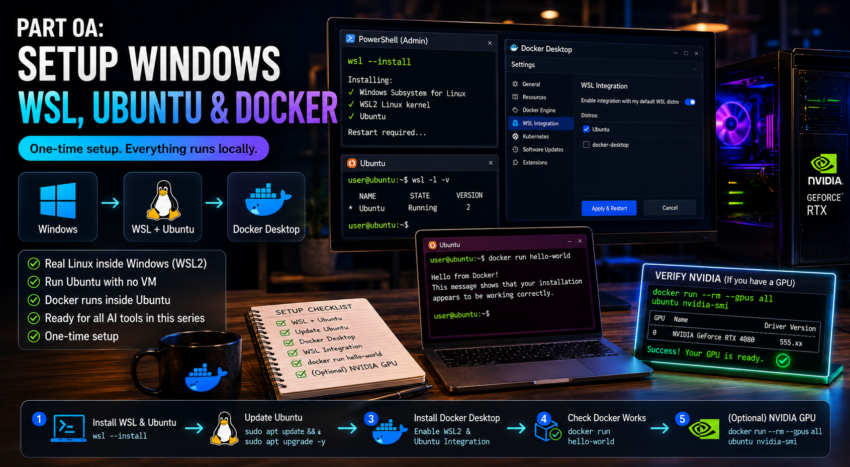
This guide gets a Windows machine ready to run the rest of the stack. You will install WSL (a way to run real Linux inside Windows), the Ubuntu Linux system, and Docker Desktop. After this you can follow any tool guide in the series.
You only do this once.
Step 1: Install WSL and Ubuntu
WSL stands for Windows Subsystem for Linux. It lets you run Ubuntu inside Windows with no virtual machine and no dual boot.
- Click Start, type PowerShell, right click it, and choose Run as administrator.
- Run this single command:
wsl --installThis turns on WSL, installs the newer WSL2 engine, and installs Ubuntu for you.
- Restart your computer when it asks.
- After the restart, an Ubuntu window opens and asks you to create a username and password. This is your Linux login. Pick something you will remember. The password stays invisible as you type, which is normal.
To confirm it worked, open PowerShell and run:
wsl -l -vYou should see Ubuntu listed with VERSION 2.
Step 2: Update Ubuntu
Open Ubuntu from the Start menu and run:
sudo apt update && sudo apt upgrade -yThis brings the system up to date. Enter your Linux password when asked.
Step 3: Install Docker Desktop
Docker is what runs all the tools in this series as containers.
- Go to docker.com and download Docker Desktop for Windows.
- Run the installer. Leave the option to use WSL2 turned on, which is the default.
- Start Docker Desktop after it installs and accept the terms.
- Open Docker Desktop settings, go to Resources, then WSL Integration, and turn on integration for your Ubuntu distribution. This is what makes the docker command work inside Ubuntu.
- Apply and restart Docker Desktop.
Step 4: Check that Docker works
Open your Ubuntu terminal and run:
docker run hello-worldIf you see a friendly hello message, Docker is working from inside Ubuntu.
Step 5 (only if you have an NVIDIA GPU)
If you want your models to run on an NVIDIA graphics card, install the latest NVIDIA driver for Windows from nvidia.com. The Windows driver already includes the support that lets WSL and Docker use the GPU, so you do not need to install CUDA inside Ubuntu.
Check that Docker can see the card:
docker run --rm --gpus all ubuntu nvidia-smiIf a table appears showing your GPU, you are ready. If you get a driver error, update the Windows NVIDIA driver and restart.
You are done
Your Windows machine now runs Ubuntu and Docker. From here, open any tool guide in this series and follow it inside the Ubuntu terminal.